In today's fast-paced world, efficient printing is crucial for businesses and individuals alike. Many face the challenge of how to increase printing speed without losing quality. Whether it's for reports, presentations, or marketing materials, speed and quality must coexist. Achieving this balance can seem daunting, yet it is entirely possible with the right approach.
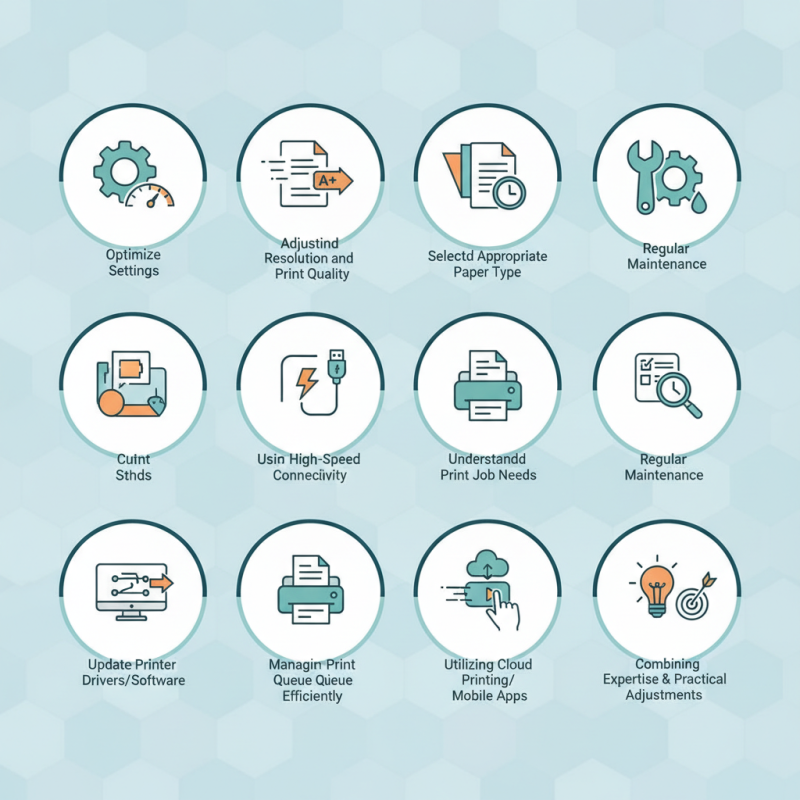
One key aspect involves optimizing printer settings. Adjusting resolution and print quality can enhance speed significantly. However, care must be taken not to compromise the final output. Selecting the appropriate paper type also plays a critical role. Understanding the specific needs of your print job can lead to faster results, while still meeting quality standards.
It's important to recognize that even with strategies in place, there may still be obstacles. Not every technique works for every printer or situation. Regular maintenance of printing equipment is essential yet often overlooked. This can result in misunderstandings about how to increase printing speed without losing quality. A combination of expertise and practical adjustments can lead to noticeable improvements in printing efficiency.
When examining your printer's speed and quality settings, it's essential to assess current configurations. Start by checking the default settings within the printer menu. Look for options related to print resolution. Higher resolution might result in better quality, but it often slows down the printing process. Aim for a balance that suits your needs.
Consider the type of print job you have. For simple documents, a draft or standard quality is usually sufficient. For presentations or high-quality images, adjust settings accordingly. It’s important to routinely test these configurations. Sometimes you'd notice a decrease in speed over time as you accumulate print jobs.
Additionally, inspect the media type selected in your printer settings. Using the correct paper type can enhance the quality without sacrificing speed. Experiment with different paper settings to see if any improve performance. Many users forget to review their configurations regularly, leading to inconsistent results. Regular reflection on these settings helps maintain an efficient workflow.
Choosing the right paper and ink is essential for enhancing printing performance. The type of paper affects both speed and output quality.
Textured papers can slow down printers significantly. Instead, opting for a smooth, high-quality paper helps ensure a quicker print process. Always consider the paper's weight;
lighter stock generally allows for faster printing speeds.
Ink choice also plays a critical role. Using the right ink for your paper type can prevent smudging and clogs. Some inks dry slowly, causing delays and quality issues.
Experimenting with different ink formulations can reveal optimal combinations. Finding the balance between ink saturation and drying speed often requires trial and error.
It's frustrating when prints don't meet expectations. Sometimes, adjusting both paper and ink can give unexpected results.
A minor tweak in your setup can lead to significant improvements. Remember, a close examination of your supplies might reveal areas for growth and enhancement.
Adjusting print resolution is a crucial factor in enhancing printing speed while maintaining quality. Many users often underestimate this aspect. According to a 2021 report by the International Data Corporation (IDC), achieving the right balance can lead to a 30% increase in speed without noticeable quality loss. By tweaking the print resolution settings, users can effectively manage their output without sacrificing detail.
For instance, switching from a high DPI (dots per inch) setting to a medium one can dramatically boost efficiency. Studies indicate that reducing DPI from 600 to 300 can maintain acceptable clarity in most documents. However, not every document type responds the same; graphics-heavy files may require a more cautious approach. An experiment conducted by the Institute for Printing Technology revealed that over 40% of users reported quality loss when adjusting settings too drastically.
These adjustments are not foolproof. Users may need to test various settings before finding the optimal configuration. Some print jobs might demand higher fidelity, leading to slower outputs, which can be frustrating. Attention to detail is essential; examining the results under different conditions can reveal unexpected issues that necessitate further adjustments.
When aiming to boost printing speed without sacrificing quality, advanced printer settings play a vital role. Adjusting print resolution can significantly impact speed. Many printers offer a draft mode, which uses lower resolution settings to enhance speed. According to industry reports, print jobs can execute up to 30% faster in draft mode. This can be a game-changer for businesses with high-volume printing needs, where efficiency is critical.
Another advanced feature is collating options. Choosing to print in collated mode, while slightly slower, can improve organization and reduce handling time. Some users find it frustrating to deal with uncollated prints, leading to workflow interruptions. By utilizing this feature wisely, teams can maintain focus and reduce time spent on managing hard copies. Furthermore, features like duplex printing decrease paper consumption, boosting efficiency without compromising quality.
Color management is another aspect often overlooked. Proper calibration of color settings can enhance image output and reduce reprints. Inaccurately printed colors may lead to waste and added costs. Regular maintenance of these advanced features ensures that printers perform at their best, blinking indicators of the printer's performance. While technology improves, it’s crucial to re-evaluate processes consistently to identify potential slowdowns.
| Method | Description | Expected Speed Increase | Quality Impact |
|---|---|---|---|
| Use Draft Mode | Print documents in draft quality to save ink and speed up printing. | 20-30% | Minimal impact |
| Optimize Print Settings | Adjust settings such as paper type and quality to suit the specific document. | 15-25% | Minor reduction |
| Print in Black and White | Choose monochrome printing for faster speeds compared to color printing. | 10-20% | No significant impact |
| Utilize Larger Print Queue | Batch print multiple documents to reduce the wait time between jobs. | 20-40% | Neutral |
| Upgrade Firmware | Ensure printer firmware is up-to-date for optimal performance enhancements. | 5-15% | None |
| Use High-Speed Printing Options | Enable high-speed modes that reduce print resolution for speed. | 20-30% | Slight impact |
| Select Appropriate Paper | Use paper that is compatible with high-speed printing without jams. | 10-15% | No significant impact |
| Close Background Applications | Free up system resources by closing unnecessary applications during printing. | 15-25% | No impact |
| Clear Print Queue Regularly | Manage the print queue to ensure swift processing of print jobs. | 20-30% | None |
| Use a Wired Connection | Prefer wired connections over wireless to reduce lag in print jobs. | 15-20% | No impact |
Regular maintenance of your printer is essential for enhancing speed and quality. Dust and debris can accumulate in various parts of the printer. Cleaning the print heads can lead to sharper images and faster printing. Regularly checking ink or toner levels ensures that you don't run out mid-print. Neglecting these checks can slow your workflow.
Another key aspect is updating printer drivers. Outdated drivers may lead to compatibility issues. Installing the latest software can improve performance and fix bugs. Also, consider using high-quality paper suited for your printer. Cheap paper can jam and cause more waste. Regular lubrication of moving parts can also help the machine function smoothly.
Creating a routine maintenance schedule is important but often overlooked. Many users forget to perform these tasks regularly. This can lead to slower speeds and poorer quality prints. Reflecting on these habits can remind us how small changes can make a big difference. Regular maintenance may require time upfront, but it pays off in the long run.
: Access the printer menu and review the default settings and print resolution options.
Draft or standard quality is usually sufficient for simple documents.
Higher resolution can improve quality but may slow down printing speed.
Switching from high DPI to medium can significantly boost efficiency without much quality loss.
It helps enhance speed and quality by preventing dust buildup and ensuring optimal performance.
Regularly clean print heads and check ink or toner levels to avoid interruptions.
Skipping maintenance can lead to slower speeds and poorer quality prints over time.
Regular updates are essential for optimal performance and to avoid compatibility issues.
Yes, low-quality paper can cause jams and waste, reducing overall print quality.
Yes, creating a routine maintenance schedule is crucial, yet often overlooked by many users.
To understand how to increase printing speed without losing quality, it's essential to start with an assessment of your printer's current speed and quality settings. This evaluation helps identify any limitations or adjustments needed for optimal performance. Selecting the right paper and ink plays a crucial role in achieving faster print times while maintaining exceptional output.
Moreover, adjusting the print resolution can significantly impact speed; finding the right balance is key to not compromising quality. Exploring advanced printer settings and features can further enhance efficiency, allowing for quicker processing without sacrificing print fidelity. Finally, regular maintenance of your printer will ensure that both speed and quality are consistently optimized, ultimately improving your overall printing experience.

Fusion Digital Print